What Disconnect Wardogs External Includes
- Targeting controls: Choose target bones, FOV and maximum distance; tune smoothing and deadzone or lock onto a selected target.
- Player information: Combine boxes, skeletons, health and distance with separate squad, faction and wounded-player indicators.
- Radar and saved layouts: Adjust radar range, marker size and transparency, then save your targeting and visual settings in multiple configurations.
Disconnect is our Wardogs cheat for players who want adjustable aim assistance and player information in one setup. You can configure the targeting, ESP and radar separately rather than displaying every available indicator at once. The gameplay videos and screenshots show the interface and the differences between these views.
The license and compatibility panels above describe Disconnect Wardogs External. Select a duration for this software license. If you need game-account access, the Wardogs NFA offer is a separate purchase delivered as an account key for its supported loader. It does not supply original Steam credentials or the account's original email, and it does not include Disconnect.
Wardogs Aimbot - Target Selection and Aim Controls
Disconnect separates target selection from aiming movement. FOV and maximum distance limit the area in which targets can be selected; the target-bone setting chooses the point on the player. Smoothing and deadzone control how the assistance behaves around that selection.
For example, when nearby and distant players appear in the same direction, the maximum-distance control helps narrow the eligible targets. The FOV circle and target line provide visual references, while Lock Target keeps the selected player as the focus.
- Target bones: Choose the head, chest or pelvis as the aiming point.
- FOV and distance: Set the selection area and maximum range. The product also includes Dynamic FOV and an optional FOV circle.
- Adjustable movement: Use smoothing and deadzone controls to tune the aiming assistance.
Wardogs Wallhack - Player Positions Through Cover
Wallhack describes the through-cover view of supported player information. ESP adds details to that view, such as a box, skeleton, health bar or distance label. They work together: wallhack helps locate a player behind an obstacle, while ESP helps interpret that player's position and condition.
Disconnect's listed visual features focus on players. Vehicle ESP and loot ESP are not listed in its current specification. If either is essential to your setup, confirm support before buying rather than assuming another Wardogs product's features are included.
Wardogs ESP - Player Details at a Glance
Player ESP adds context to each position. Boxes and skeletons make players easier to locate, while names, health bars and distance labels give you more information about the encounter. You can choose which elements appear instead of keeping every indicator enabled.
Squad and faction markers help distinguish groups in a crowded fight. Wounded-enemy and wounded-friendly indicators provide another useful difference, so a downed player does not look identical to someone still moving through the area.
- Player position and condition: Show boxes, skeletons, distance and health beside players.
- Squad and faction information: Distinguish the groups around you with dedicated indicators and colors.
- A readable display: Adjust label placement, font size and render distance to keep important details visible.
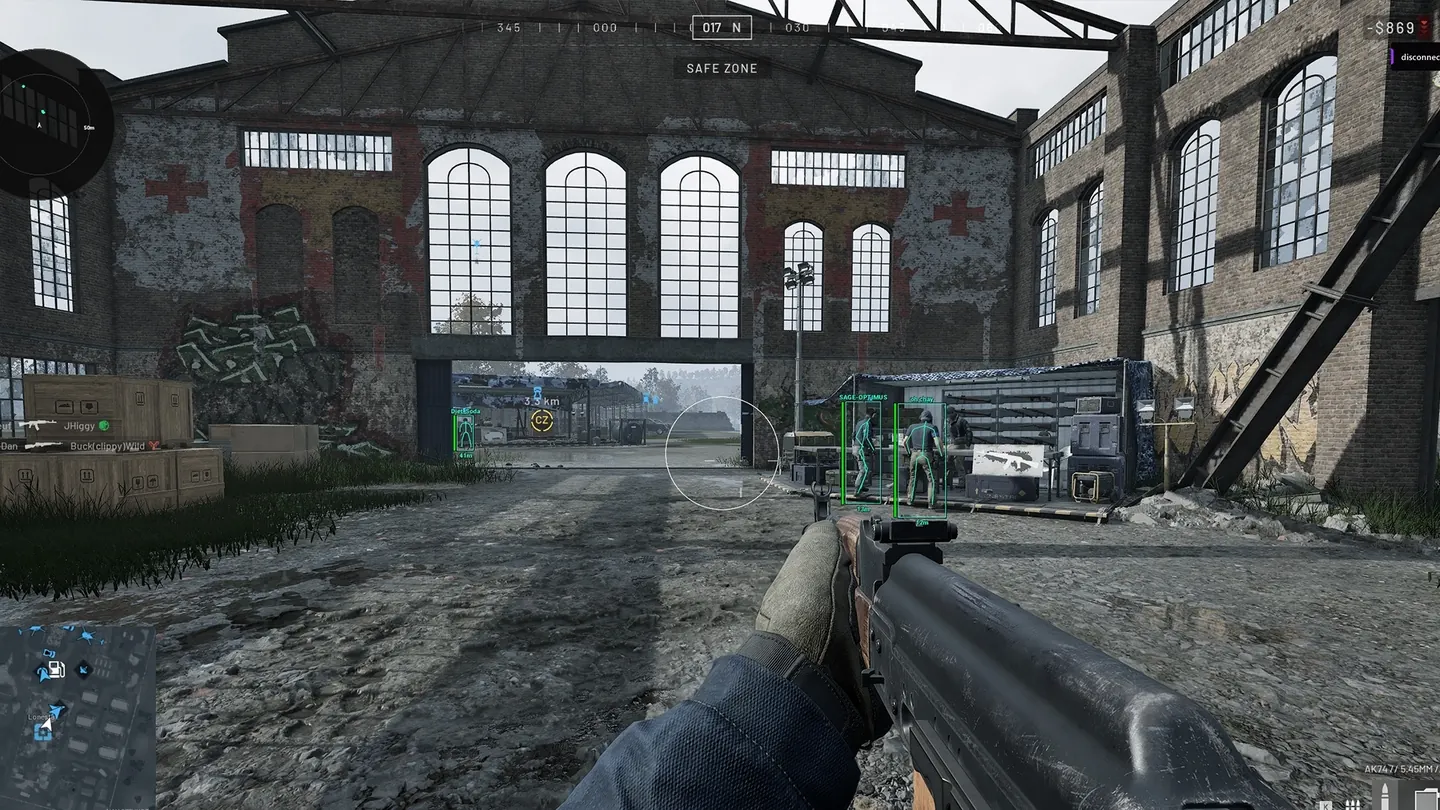
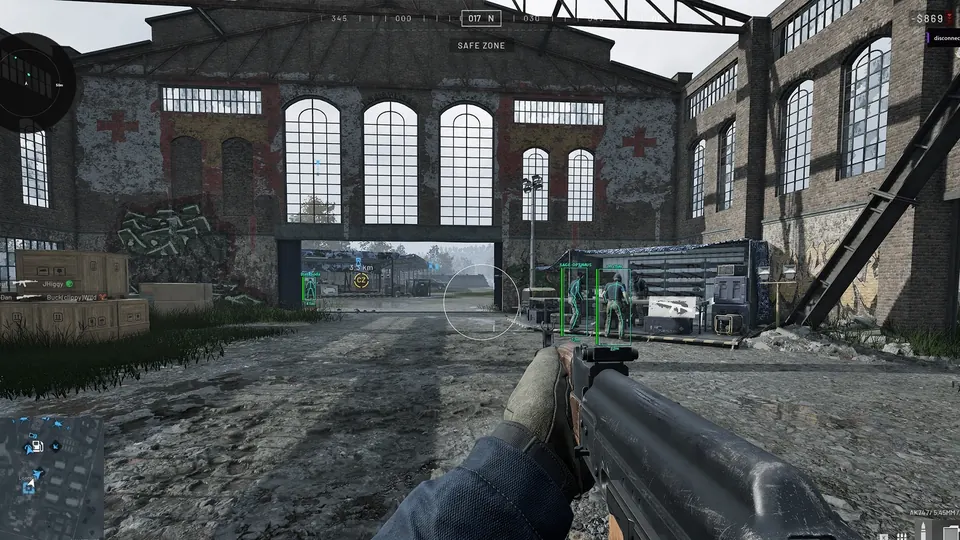
Player boxes and skeletons mark positions in the warehouse. Names appear above the players and distance labels below, showing the difference between nearby players and the one farther through the doorway.
Wardogs Radar - Keep Track of Nearby Players
Radar places player markers in a separate display, while ESP attaches information to players in the main game view. Use ESP to read an individual player's health or distance and radar to see how nearby player positions are arranged.
Disconnect includes Show Team and Show Wounded filters, a distance visualizer and automatic distance scaling. Render radius and render distance control the view; player size and background transparency adjust its appearance. The screenshot below shows these radar controls beside the squad and faction color settings.
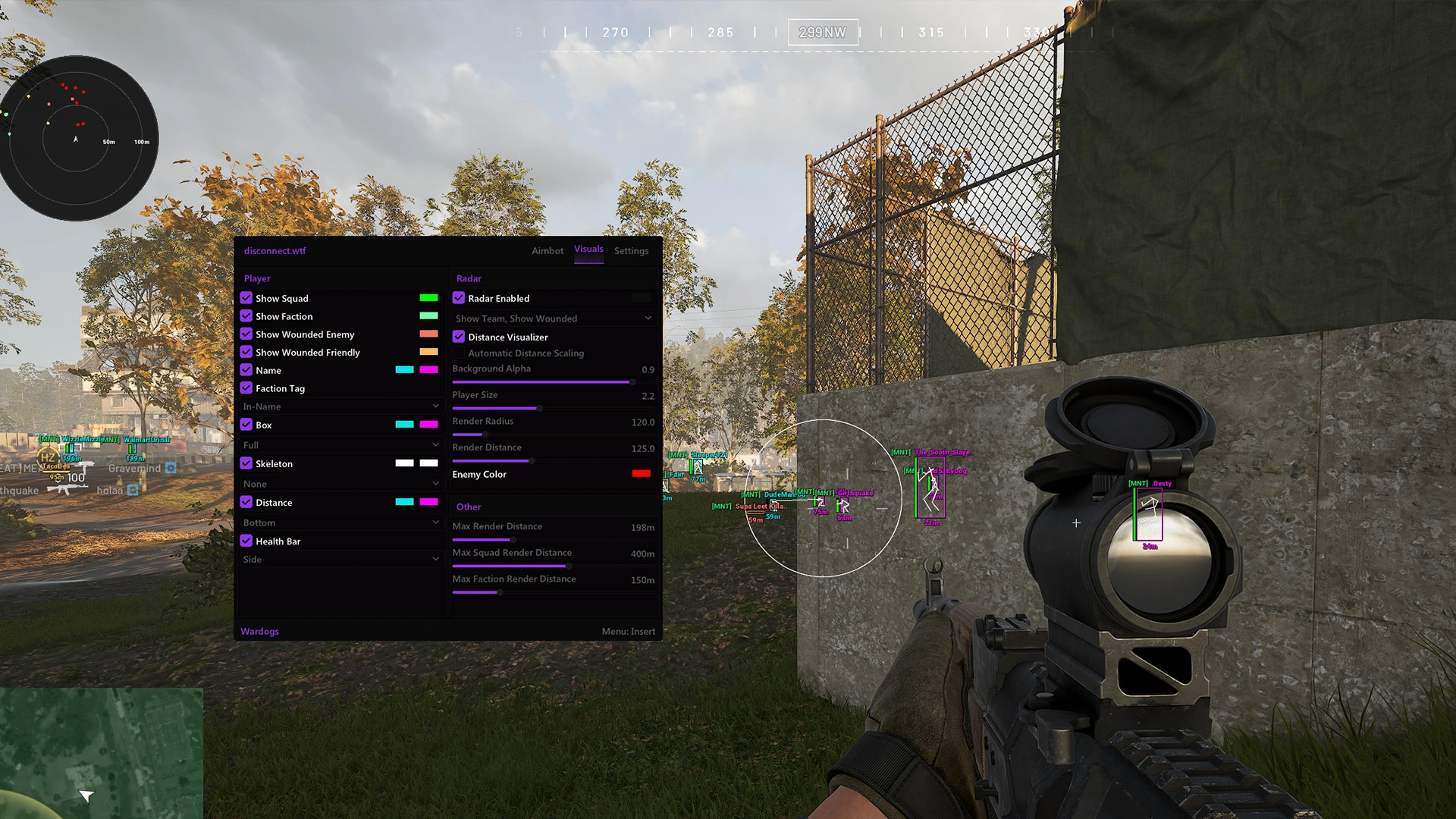
The circular radar in the upper-left shows player markers against distance rings. The open Visuals menu shows radar size, transparency and range controls beside separate squad, faction and wounded-player color settings.
Customize Your View and Save Your Settings
Choose colors that make enemy markers, squad members and faction information easy to tell apart. Adjust ESP text size, move distance labels and health bars, and set the transparency of the radar background. The aim is to make useful information easy to read at a glance.
Save multiple configurations to keep your preferred targeting and display arrangements ready. Switch back to a saved layout when you want more detail for a close encounter or a simpler view of the surrounding area.
Buy Wardogs Cheats for PC
Use the license panel above to compare the price for each available access period. The starting price is not the total for every duration, so check the amount for the period you intend to use. Open Disconnect Wardogs External to choose that plan, review availability and confirm the selected period and total at checkout.
Before paying, check the PC requirements and reported product status. The price of a Wardogs NFA account is for account access; it is not a lower-priced Disconnect license. Keep those two purchases separate when comparing your budget.
After purchase, find your delivered key in your order email or My Keys. Follow the Disconnect Wardogs setup guide for preparation and loader instructions. If the payment confirmation arrived but you cannot find a key, use the order-help guide below before placing another order. Support can investigate using your existing order reference; keep the license key private.
- Before purchase: Compare your PC with the listed requirements and review the product's current operating status.
- Choose your access period: Select the duration on the product page and review the license terms before paying.
- Set up your license: Retrieve the delivered key and follow the Wardogs instructions for this product.
Wardogs Compatibility and Product Updates
Compare your operating system and processor with the System Requirements & Compatibility panel before selecting a license. Use the setup guide for the preparation steps required by Disconnect. Your PC also needs to meet the system requirements for the Wardogs game itself.
Check the reported product status after a Wardogs update and before launching. A license being available to buy is different from the software's operating status. If the product is being updated or tested, follow the current status notice and setup guidance. An undetected report is a current status, not a promise of permanent account protection.