The best Rust cheat for your setup is the build that has the controls you need, supports your PC and offers the license duration you want. Anchor Cheats offers Storm Rust External, Disconnect Rust External and Disconnect Rust Internal. This guide compares their listed features and setup requirements; it does not rank other providers or claim independently measured performance.
All three builds include configurable aim assistance and visual information. The useful comparison goes beyond whether a product says “aimbot” or “ESP”: look at the individual controls, world information, utilities and saved configurations you would actually use. You can also explore the broader Rust cheats overview before comparing the products below.
External or Internal: Where Should You Start?
Start with the operating model and then check the exact features you need:
- Disconnect Rust External: start here when you want its individual ore, crate and deployable filters, radar-radius controls and NPC chams options. Its setup guide uses Discord Legacy Overlay.
- Disconnect Rust Internal: start here when you want named controls such as Dynamic FOV, Auto Reload, NPC Healthbar, Radar Auto Scale or Auto Pickup Collectables.
- Storm Rust External: review its Memory Aim and Silent Aim, Player and World ESP, separate Raid ESP, weapon controls and sky customization. Its setup uses Hyper-V, a restart and the Crosshair X overlay.
The labels describe different operating models. They do not establish that one product is faster, easier to install or less likely to be detected. Those conclusions would require separate evidence, so they are not the basis of this comparison.
What the Two Disconnect Builds Share
Both product specifications list Memory Aimbot, Silent Aimbot, Smoothing and Hit Chance. Both include player information, NPC information, World ESP, radar, movement settings and reusable configurations. Neither NPC ESP nor saved profiles is exclusive to Internal.
Those shared groups are the starting point. The named settings below provide a more useful comparison than a simple aimbot/ESP checkmark.
See it in action
Compare the Named Controls
The next sections compare the two Disconnect builds. Storm's controls and setup are covered in their own section below.
Target selection and FOV
- External: Hitbox selects Head, Chest, Stomach or Pelvis. Its list names Target Teammates, Draw FOV, Aimbot FOV and Target Line.
- Internal: Aimbot Bones covers the same named body areas. Its list adds Target Options for Wounded, Scientists, Sleepers, Team and Safezone, with Visible Check and Dynamic FOV.
Use this distinction if a specific targeting condition matters to you. A drawn FOV circle is an indicator; it is not the same control as target eligibility or aiming behavior.
Weapon controls
- External: Recoil Amount X, Recoil Amount Y and Spread Amount are listed with 0–100% ranges. Its Weapon group also names Shotgun Nospread and Bow Thick Bullet Override.
- Internal: Recoil Modifier X/Y and Spread Modifier appear alongside Auto Reload and No Team Damage.
Both lists include Always Automatic, Instant Eoka, Instant Bow and Thick Bullet. Similar recoil names do not establish that the same slider value behaves identically in both builds.
NPC information
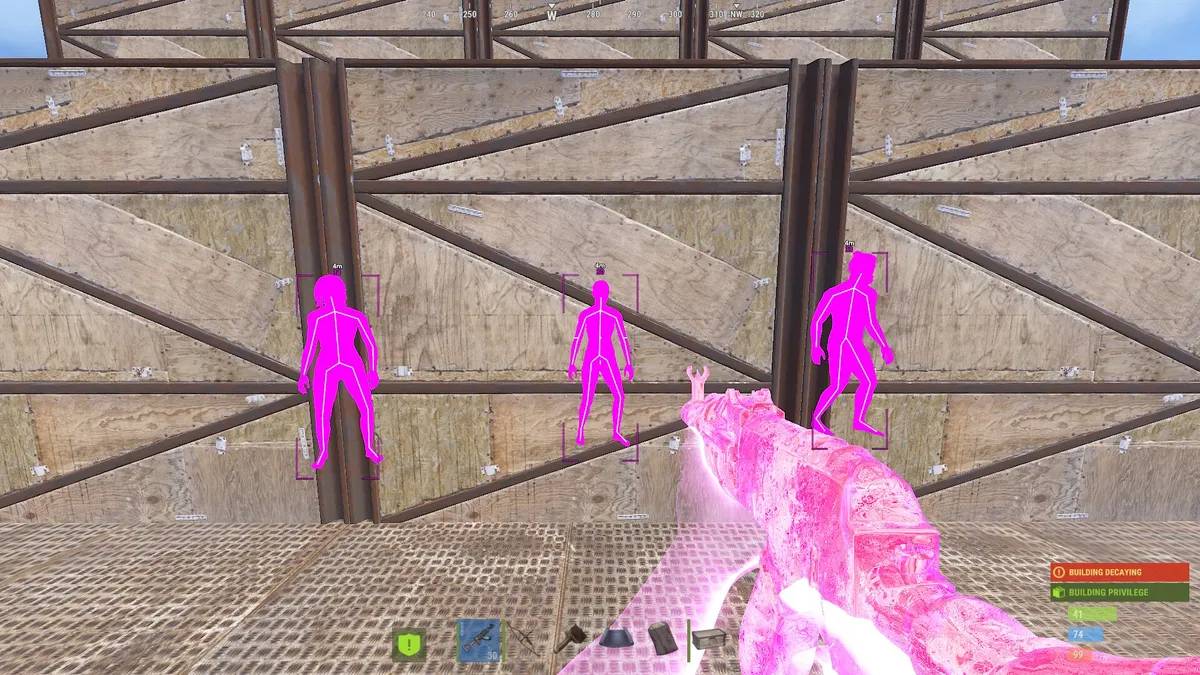
- External: the NPC ESP group lists Name, Box, Distance and Chams with 18 material selections.
- Internal: the NPC ESP group lists Name, Distance, Held Item, Box and Healthbar, with 11 NPC chams options and NPC Max Distance.
If you want NPC health or held-item labels, those are explicit entries in Internal's list. The material counts describe customization options, not measured visual quality.
Player labels and radar
- External: player filters name Show Teammates, Show Wounded, Show Sleepers and Show Dead. Its radar controls include Radius, Render Distance, Player Size and Transparency.
- Internal: Player ESP lists ESP Filter, Steam Profile Pictures, Dormant Players and Dormant Bullets. Its Visuals group includes Radar Auto Scale and Radar Transparency, with size and distance controls in Customization.
Choose the display controls that answer your question: a player label and a radar view present information differently. Neither list establishes unlimited map coverage.
World markers and utilities
- External: World ESP names Sulfur, Metal and Stone ores, separate collectables, Tool Cupboard and workbench markers, vehicles, traps and crate types. Misc lists Fast Loot and Instant Revive/Pickup.
- Internal: World ESP names Ore, Collectable, Dropped Weapons, Backpack, Corpse, Crate, Vehicle, Animal and Deployable ESP, with distance controls. Misc lists Bright Night, Instant Loot, Auto Revive Teammates and Auto Pickup Collectables.
A Tool Cupboard marker is not the same feature as viewing its upkeep or authorization list. Compare the listed marker or utility you need instead of assuming one broad World ESP label covers every behavior.
Saved configurations
Both builds list Legit, Rage and Other configs. External places them under Settings; Internal places them under Utility. Use the save/load workflow for your selected build. A preset name does not establish a detection outcome.
Where Storm Rust External Fits
Storm Rust External has its own feature list and setup. Its Aim group includes Memory Aim, Silent Aim, prediction, smoothing, hitchance and bone selection. Player ESP includes box styles, health and clothing information, radar, off-screen arrows and teammate/NPC filters.
World ESP names crates, resources, dropped items, workbenches and Tool Cupboards. The separate Raid ESP group lists C4, Satchel, Rockets and Explo Ammo. Weapon, movement, sky and configuration controls are listed individually on the product page, so compare the options you need directly.
For setup, Storm requires Windows 10/11 Pro, Enterprise or Education with Hyper-V and CPU virtualization enabled. Its Rust overlay uses Crosshair X with Limit Crosshair Size OFF. Follow the Storm Rust setup guide for the restart and second injection.
Open the Product You Want to Buy
Open Storm Rust External, Disconnect Rust External or Disconnect Rust Internal to review the complete feature list, current requirements and selectable licenses. The examples above identify specific listed controls; a control named for one build is not proof that the other build lacks every related capability.
For example, a buyer who needs NPC health labels can find Healthbar in Internal's NPC ESP list. A buyer interested in ore markers can compare the named world filters across the three products. Start from the control you need rather than a claim that one entire build is better.
Check Requirements and Compare the Actual Price
The product cards list Windows 10 and 11, Intel and AMD processors, and no USB requirement. Read the detailed setup requirements for your selected build as well: Storm requires a supported Pro, Enterprise or Education edition and its Hyper-V setup. Your PC also needs to run Rust itself.
The setup paths differ. Rust External setup includes Discord Legacy Overlay. Rust Internal setup has its own launch sequence. Both guides name DirectX and Visual C++ runtimes. If your environment is not covered, ask support before paying rather than copying another build's instructions.
Compare prices for the same license duration where the products offer it. A “From” price may refer to a different plan and is not enough to compare the total cost of your intended purchase. The product pages show the current variants and prices; this article does not freeze those changing values into its text. Our Rust cheat pricing guide explains what to consider when comparing plans.
What Does Undetected Mean When Choosing a Rust Cheat?
If you are comparing undetected Rust cheats, check the live product status for the specific build. A status label reports its current known state; neither external nor internal operation guarantees permanent undetected status or account safety. Follow the current product guidance if an update or maintenance notice is shown.
Once the features, requirements and plan match your needs, use the buying guide for the purchase process and the Windows setup guide for general preparation. Product-specific instructions remain the reference for the selected build.
How This Comparison Was Prepared
The Anchor Cheats Team prepared this guide as the store selling these Rust licenses. We compared the named controls and requirements on our product pages with the separate Disconnect and Storm setup documentation. The examples explain which listed controls answer a buyer's question.
This is a comparison of our own lineup, with no independent performance benchmark or detection-history ranking. Prices, available licenses and reported status can change; check the linked product pages, setup guides and status page before buying. If a control or requirement is unclear, ask our support team about the exact build.
Watch Rust gameplay alongside the comparison
Watch Anchor Cheats' Assassin Rust gameplay video on YouTube for an example of aiming and ESP during fights. Use it to relate the feature names above to a moving scene, then check the current specification for the exact build you are comparing.
For another example from our third channel, watch the Rust "Make a NOOB RICH" video. These are gameplay recordings; current license options and installation instructions remain on the linked product pages and setup guides.