
Warning
These steps turn off Windows protections. Keep track of the settings you change.
1. Prepare Windows
Disable Windows Defender
Turn off real-time protection first
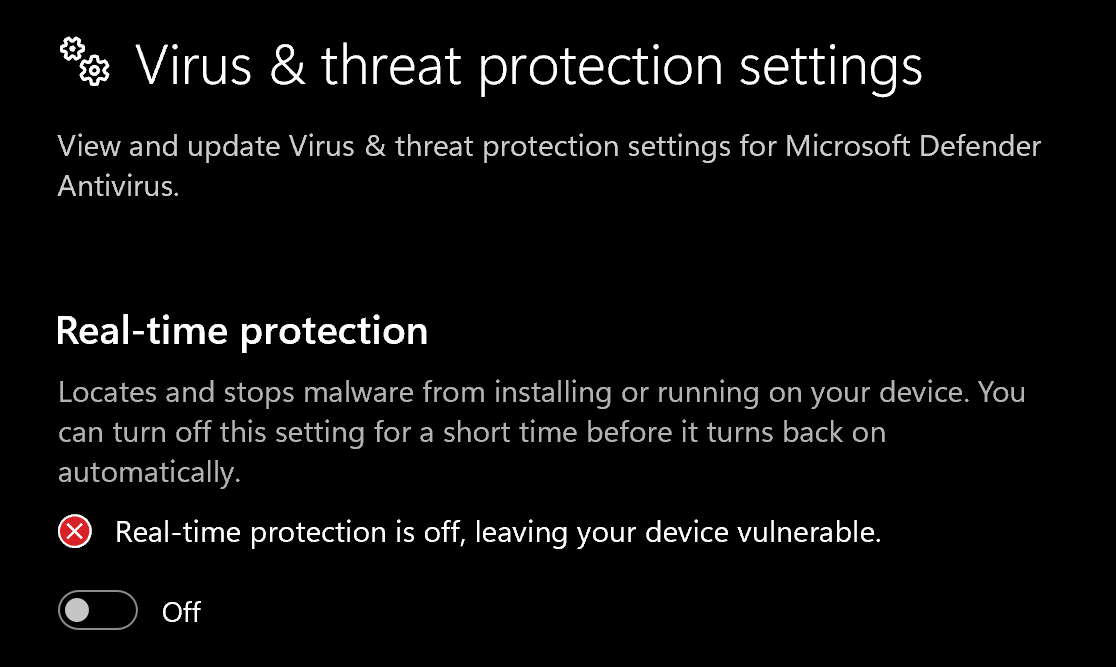
Open Windows Security → Virus & threat protection → Manage settings and turn off Real-time protection and the other toggles shown below before downloading DControl.
Install WinRAR
Download and install WinRAR. You need it to extract the DControl archive.
Download DControl
Download DControl (Defender Control).
Extract the archive
Right-click the downloaded
.rarand extract it. When asked for a password, entersordum.Disable Windows Defender
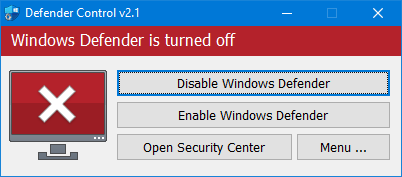
Open dControl.exe and click Disable Windows Defender. The window turns red when Defender is off.
Turn off Exploit protection
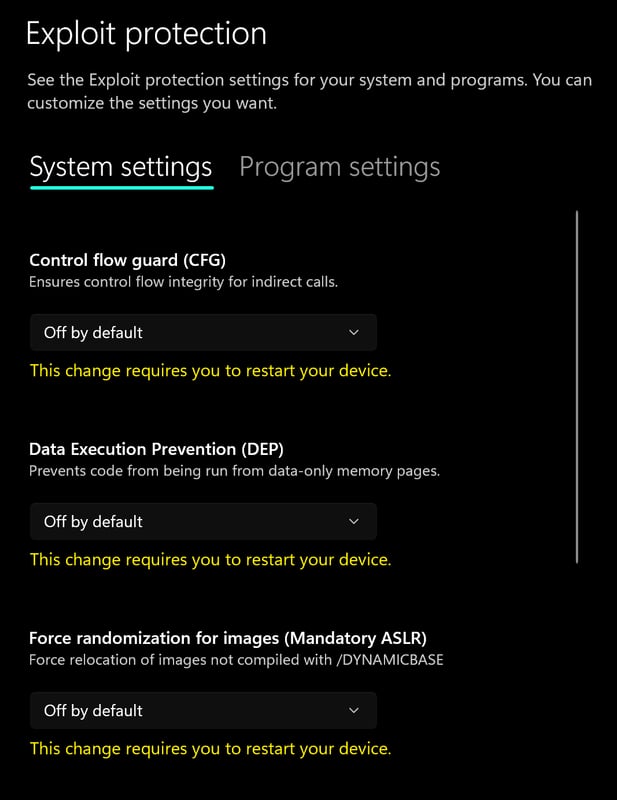
Open Windows Security → App & browser control → Exploit protection settings and set every option to Off by default.
Turn off Reputation-based protection
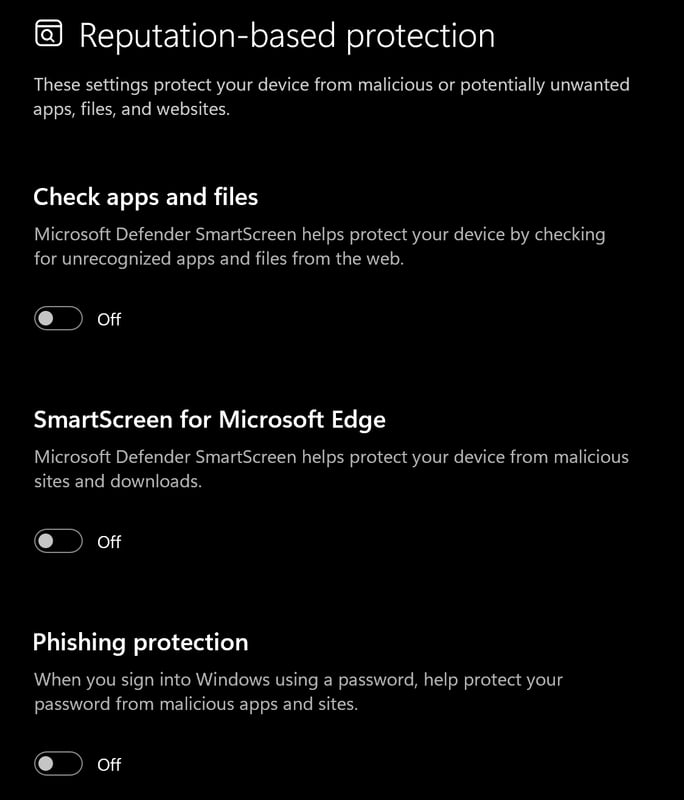
Go to App & browser control → Reputation-based protection settings and turn off all options.
Required files
- Install DirectX Runtimes.
- Install Visual C++ Redistributable (x64).
2. Set up the overlay
Open the Discord desktop app
Install Discord for Windows, then launch the desktop app as administrator.
Choose Legacy Overlay
Open User Settings → Game Overlay. Turn Legacy Overlay on and the regular Discord Overlay off. Keep Discord running.
Note
If Legacy Overlay is missing from your Discord settings, stop here and ask support which Discord version or setup is currently supported.
3. Download the loader
Run the loader as administrator.
Note
Find your license key in your order email or My Keys. Keep it private.
4. Inject & launch
Register or log in
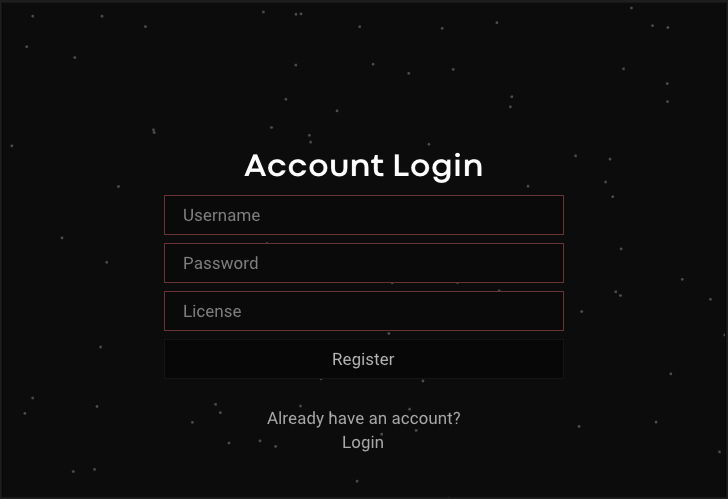
New account: enter a Username, Password and your key in License, then click Register.
Existing account: click Login and sign in with your loader account.
Inject
Confirm that Discord is running with Legacy Overlay enabled, then press Inject. Follow the loader's current prompt. If it asks for a different overlay, stop and send support the exact message before continuing.
Open Rust
When the loader tells you to open the game, launch Rust. Keep Discord running while the game is open.
Info
Menu shortcut: Insert / INS shows or hides the menu.
Common errors
Need help?
Open a ticket in our Discord with:
- Your product: Disconnect Rust External.
- Your Windows version, Discord version and the step where you stopped.
- The complete error message or a screenshot with your license key hidden.