The Arc Raiders aiming panel contains several controls with different jobs. Target selection chooses which eligible target to prioritize, FOV and distance set limits, smoothing changes the transition, and prediction concerns a moving target. Reading those controls separately makes a configuration easier to understand and troubleshoot.
The controls below come from the current Storm Arc Raiders product specification. They describe that product's interface. For player markers, loot categories and radar, use the separate Arc Raiders ESP guide.
Choose an aim mode and activation method
The specification lists Mouse / Memory Aim and Hold / Toggle Activation Key. Aim mode and activation method are separate choices: one selects the available aiming implementation, while the other determines how you activate it.
Check the activation key before changing targeting values. With a hold configuration, releasing the key changes the activation state. With a toggle configuration, a key press changes the state. Note which method is selected when describing an aiming issue to support.
The product page lists both modes but does not establish a universal performance or detection advantage for either. Choose from the options available in your current menu and ask support if the intended mode or key behaviour is unclear.
Understand target selection and bones
Target Selection lists Crosshair / Distance. These options express different priorities among eligible targets. A target near the crosshair and a target nearest to the player can be different entities, so the selected priority matters when comparing what you expected with what the configuration selected.
Target Bones lists Head / Neck / Chest / Pelvis / Closest. Review this separately from target selection. Choosing a target and choosing a point on that target are distinct parts of the configuration.
The panel also lists Ignore Downed Players, Ignore Squad Members and Visibility Check. If a particular player is excluded, inspect those filters before treating the absence as an activation failure. Record the target's relevant state and the active filters when asking for help.
Set FOV and distance as separate limits
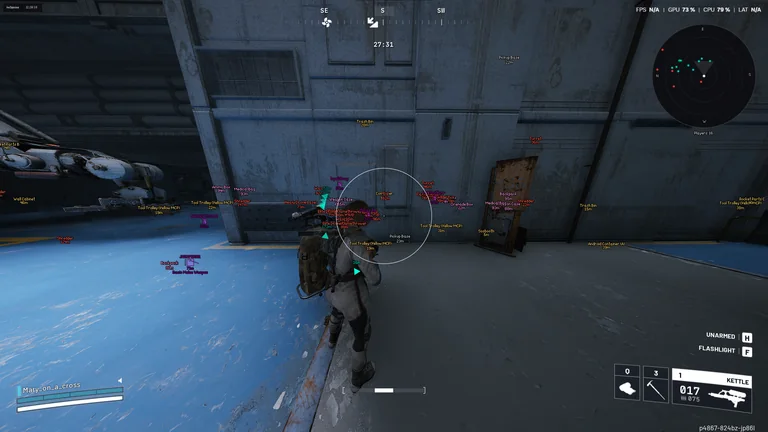
The listed FOV Radius range is 10–600 pixels, with a Draw FOV Ring option. The ring provides a visual reference for the configured area. Keep it visible while checking the control so you can relate the setting to the screen.
Maximum Aim Distance has a separate 5–500 metre range. It concerns target distance in the world, whereas the FOV radius is expressed in screen pixels. Increasing one does not change the unit or purpose of the other.
A player can also be visible in ESP under a different render-distance setting. Displaying that player does not, by itself, mean they satisfy the aiming panel's current limits. Compare the two panels when a marker is present but your aiming configuration does not select it.
Review smoothing before combining more controls
The specification lists Smoothing from 1.5 to 30. Use the name and scale shown in the current product menu when reviewing it; a number copied from another product does not establish the same behaviour here.
Change one control at a time and keep a note of the previous value. If smoothing, target bones, FOV and filters are changed together, it becomes difficult to identify which change affected the result.
The separate Humanize group lists Deadzone, Curve, Reaction Delay and Noise Jitter. These provide additional ways to configure aiming behaviour. Review each control's effect before combining them. A label such as Humanize describes an interface feature and does not establish an account-safety outcome.
Check prediction and its visual reference
Target Prediction and Prediction Dot are separate listed controls. Prediction concerns the aiming calculation for movement, while the dot provides a visual reference. Review whether prediction is enabled and whether its indicator is being displayed before describing an unexpected point as the selected target bone.
Target Line and Target Lock are also listed separately. Use the line to help describe what the display is indicating, and record whether target locking is enabled when reporting a target-selection issue. Avoid changing these along with every other option in the same pass.
Write a useful configuration report
A useful report includes the selected mode, activation method, target priority, bone choice, FOV, aim distance and relevant filters. Describe what you expected and what happened, including whether the menu, FOV ring and player display were visible.
Compare your menu with the current product page. Use product status for the current reported operating state and support for an option that is missing or behaving differently after an update.
If the loader has not completed its required restart and second injection, follow the Storm Arc Raiders installation guide first. Arc Raiders does not require Crosshair X. The Storm error reference covers startup and injection issues; aiming values cannot resolve an incomplete installation.