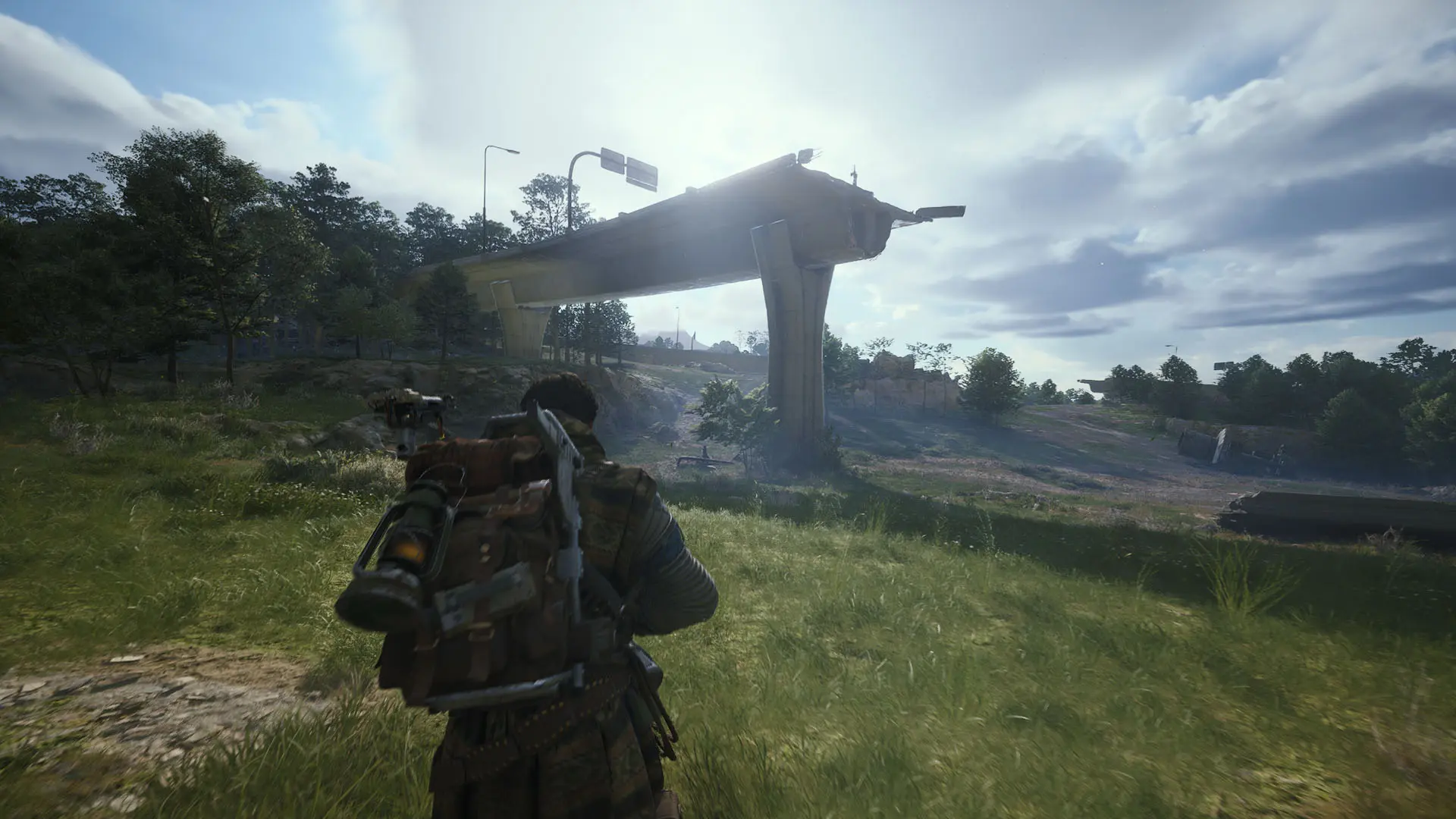
Arc Raiders ESP settings become easier to understand when you separate player markers, world information and radar. Each view answers a different question: who is nearby, which world objects are marked, and where those markers sit relative to your position.
This guide explains the controls listed for Storm Arc Raiders. It focuses on choosing a readable display. For a broader introduction to the topic, start with the Arc Raiders information page.
Start with player information
The player display lists full or corner boxes, names, distance, health bars, skeletons, a head circle and a view line. Held-item and platform labels are separate options. Each adds information to the same scene, so enabling every label at once can make individual markers harder to read.
Choose the information you want to recognize first. For example, boxes and distance give a different display from a skeleton, health bar, name and held item together. Change one element, inspect the result, then decide whether another label adds something useful. That makes it easier to identify which setting caused clutter.
The listed maximum render distance runs from 5 metres to 2 kilometres. This is a display setting. The aiming panel has its own maximum distance, and world categories have individual distance limits. Check the panel that owns the missing marker before changing a different range control.
Check visibility and squad filters
Visible and invisible colors can be adjusted separately for boxes, skeletons, names and distances. If a marker exists but is difficult to see, inspect its color as well as its enabled state.
Squad information has separate controls. The specification lists Show Squad Members and squad colors for visible and invisible states. The aiming panel also has Ignore Squad Members. Review those independently: the choice to display a squad member and the choice to exclude them from aiming serve different purposes.
Hide Dead Players, Players-Only Mode and Draw Self also affect what appears in the player view. Record the relevant filter when reporting an unexpected marker, especially if the same entity appears in one view and is absent from another.
Organize World ESP by category
Storm's World ESP specification groups objects into eight categories:
- ARC.
- Containers.
- Extractions.
- Dropped items.
- Salvage.
- Raider Drops.
- Carryables.
- Supply stations.
Each category has its own names, distance labels, dots, colors, Battle Mode visibility and distance limit. The listed category range runs from 5 metres to 1 kilometre.
For a display focused on containers, review the Containers category first. Enable the label information you need, choose a readable color and inspect its distance limit. Then review another category separately. A long global player range does not explain a world object hidden by its own category setting.
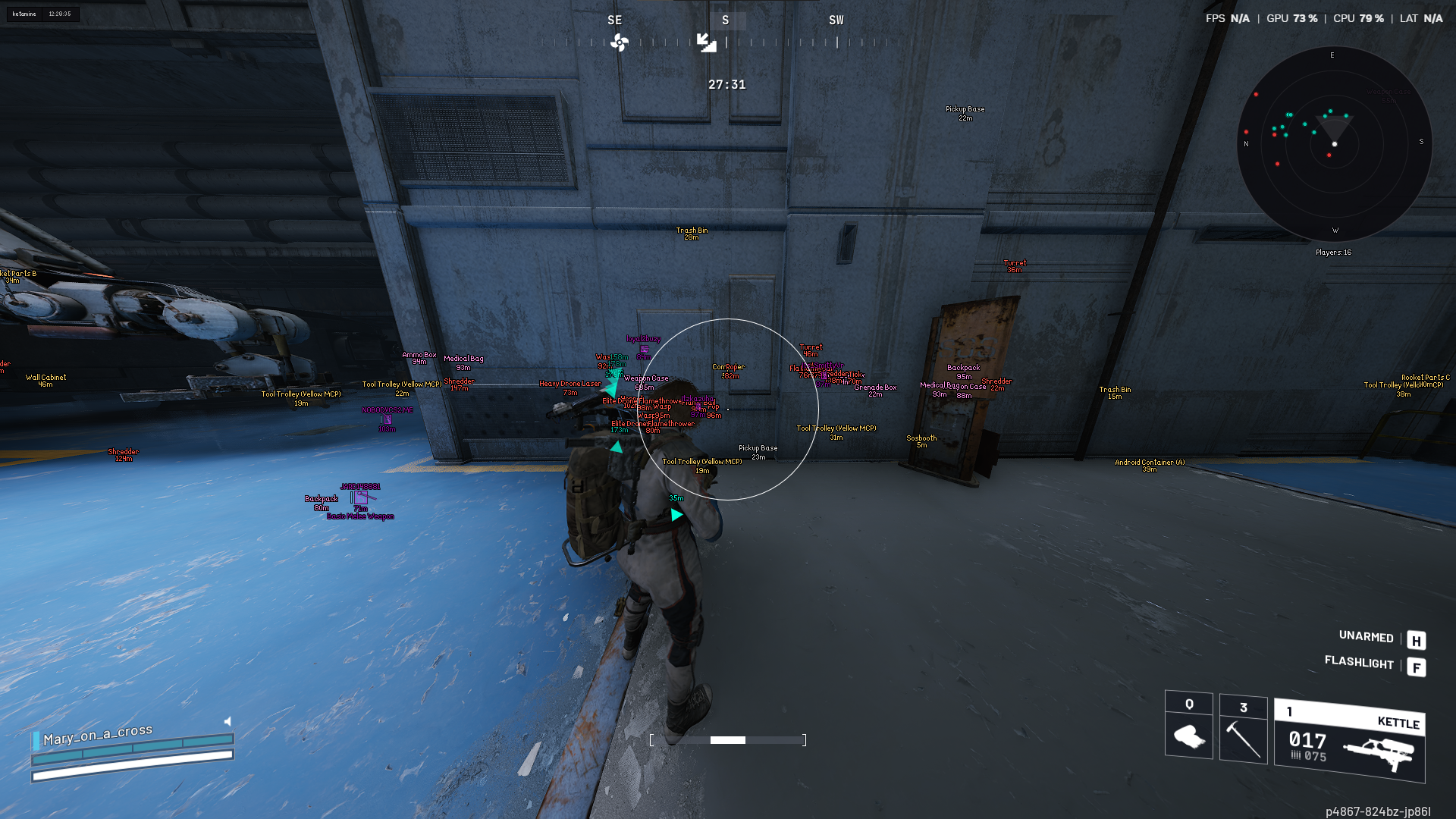
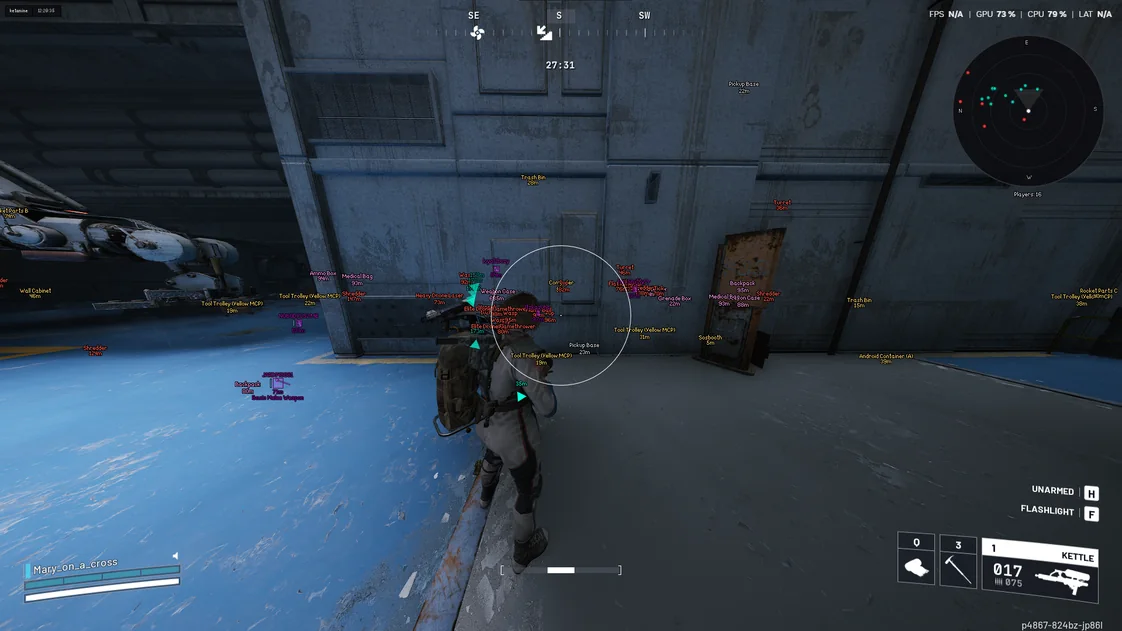
The gameplay image shows how several information layers can occupy the screen together. It illustrates the display, rather than prescribing an exact configuration or proving how a current game update behaves.
Distinguish radar scale from radar size
The listed radar controls include an enable switch, a scale from 10 to 500 metres and a size from 100 to 400 pixels. Scale describes the world area represented; size describes the space used on the screen.
Increasing the panel's size does not select a different world range. Review scale when the represented area is the issue, and size when the panel itself is difficult to read. Inspect the result with the other views still visible so that the radar does not cover information you want to keep.
Off-screen arrows form another view. Their controls include a 10–1000 metre range, radius, size and an optional distance label. A missing arrow should be checked against those controls rather than the radar's size slider.
Use Battle Mode deliberately
Battle Mode has a rebindable hotkey for switching to a cleaner overlay. World categories also have their own Battle Mode visibility controls.
If labels disappear after pressing the Battle Mode key, inspect the active mode and the affected category's visibility choice. This provides a useful explanation to check before repeating the installation. Keep a note of which elements you expect in the normal and reduced display.
Describe the exact display problem
For a missing marker, note its category, whether any labels remain, the active mode, the relevant range and the last setting you changed. For example, “container names disappear in Battle Mode, but container dots remain” is more useful than “ESP is broken.”
Use the current product specification to compare control names with your menu. Check product status after an update, and send support the exact symptom if the published controls no longer match. Keep license keys out of screenshots.
If neither the menu nor any ESP appears, start with the Storm Arc Raiders setup guide. Complete the required restart and second injection before tuning display settings. Arc Raiders uses the Storm loader without the Crosshair X archive from the Rust setup. The Storm error reference covers loader, injection and reboot problems.