
Setup & requirements
Use the guide for your product:
Both use the Storm loader panel and hyper-v.bat. Run the loader as administrator, sign in and inject. The first injection installs the hypervisor: restart your PC, reopen the loader as administrator, sign in and inject again.
Reloading the hypervisor also requires a restart. Follow your product guide for its complete sequence and downloads.
- Secure Boot: OFF — check Secure Boot.
- CPU virtualization: ON in BIOS — enable VT-x / SVM.
- Hyper-V: ON in Windows Features — enable Hyper-V.
- Windows edition: Windows 10/11 Pro, Enterprise or Education — Windows Home.
- BIOS mode: UEFI. Check BIOS Mode in
msinfo32. - Memory Integrity: OFF — check Core isolation.
- Close Docker, VMware, VirtualBox, BlueStacks and WSL — VM conflicts.
- Use a standard Windows installation rather than a stripped build such as Tiny11, AtlasOS or ReviOS.
Check your Windows edition under Settings → System → About. To verify CPU virtualization, open Task Manager → Performance → CPU and look for Virtualization: Enabled.
Your product's setup guide also lists its remaining preparation steps.
Injection & loader
- Review the requirements checklist, especially Secure Boot, CPU virtualization, Hyper-V and Memory Integrity.
- Close conflicting VM software. Tell support if Vanguard or FACEIT is installed.
- Run the loader as administrator and sign in.
- If this is the first injection, let the loader install the hypervisor and choose Restart.
- After the restart, reopen the loader as administrator, log in and inject a second time to load the cheat.
For Rust, follow the Crosshair X steps in the Rust guide before the second injection.
If it still fails, contact support with the full error message or a screenshot.
Work through the checks in order:
- Use Start → Power → Restart, rather than Shut down, for the Fast Startup check.
- If Windows is still installing Hyper-V features, let it finish and restart again.
- Confirm a supported Windows edition.
- Check that Memory Integrity is OFF.
- Check whether Tamper Protection is reverting a setting requested by the setup guide.
- Fully close VM software and WSL.
- Tell support whether Vanguard / FACEIT is installed.
- Ask support to check hypervisorlaunchtype; the expected value is auto.
- Tell support if Group Policy manages your Windows settings.
- Finish any pending Windows Update and its requested restart.
- Ask support whether DISM / SFC repair is needed.
- Ask support whether a Hyper-V reset is needed.
- Report any BitLocker recovery prompt.
- Ask support to review CSM / UEFI compatibility with your current Windows installation.
- Report any installed antivirus driver or other antivirus software.
- Tell support if you use a custom Windows build.
- Ask support to investigate possible WMI corruption if the earlier checks do not resolve it.
The advanced items need issue-specific instructions. Open a support ticket with your Windows edition, the exact restart message and the checks you have already completed.
- Right-click the loader and select Run as administrator.
- Check Task Manager for another running copy of the loader.
- Check Windows Security's Protection history for a blocked or removed file.
- If Windows displays Windows protected your PC, a SmartScreen warning or a Smart App Control message, send support the exact message.
- For VCRUNTIME / MSVCP or DirectX errors, use the missing DLL instructions.
- Download a fresh copy from the Storm loader panel if the original download was incomplete.
If it still closes, contact support and say whether any window or error appears before it closes.
Rust menu & crashes
Storm Rust renders its menu through Crosshair X. These overlay steps apply to Rust only; Storm Arc Raiders does not use this Crosshair X archive.
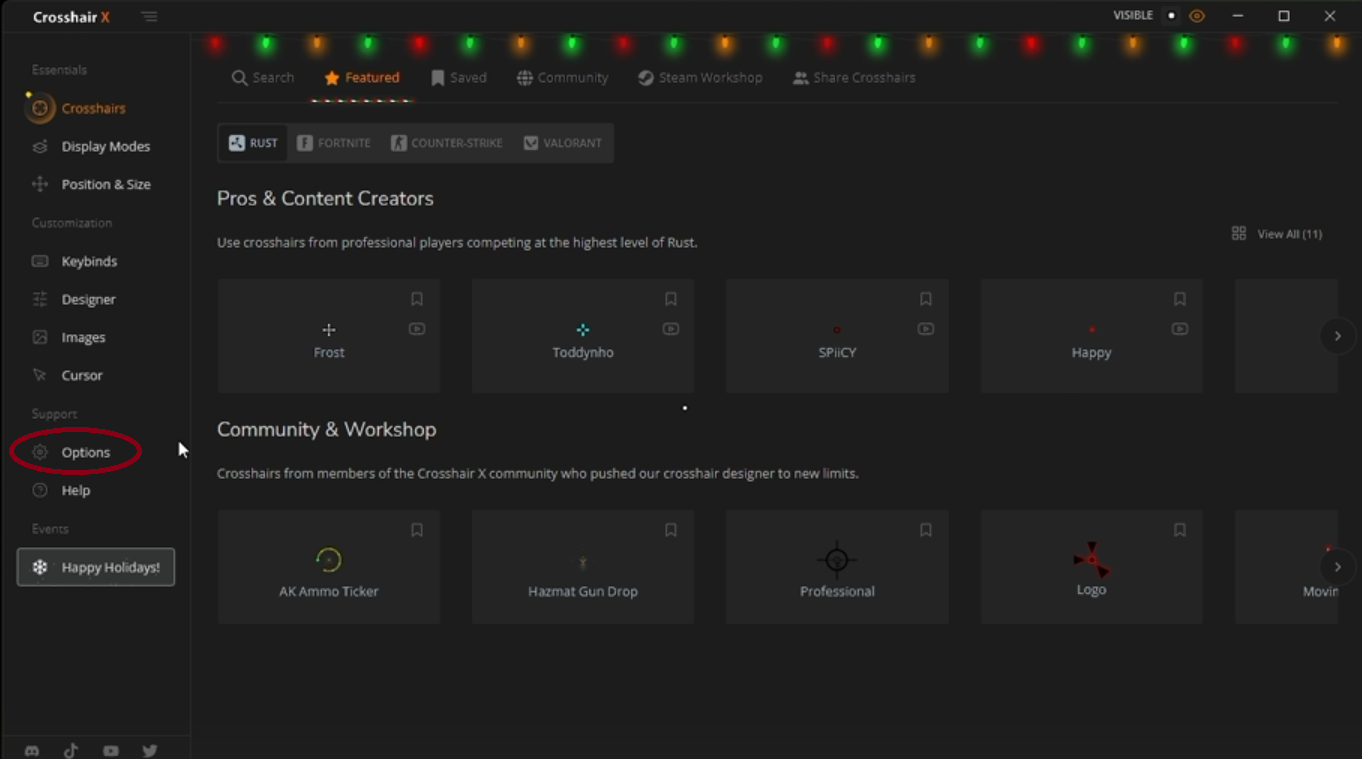
- Open Crosshair X.
- Select Options in the left menu.
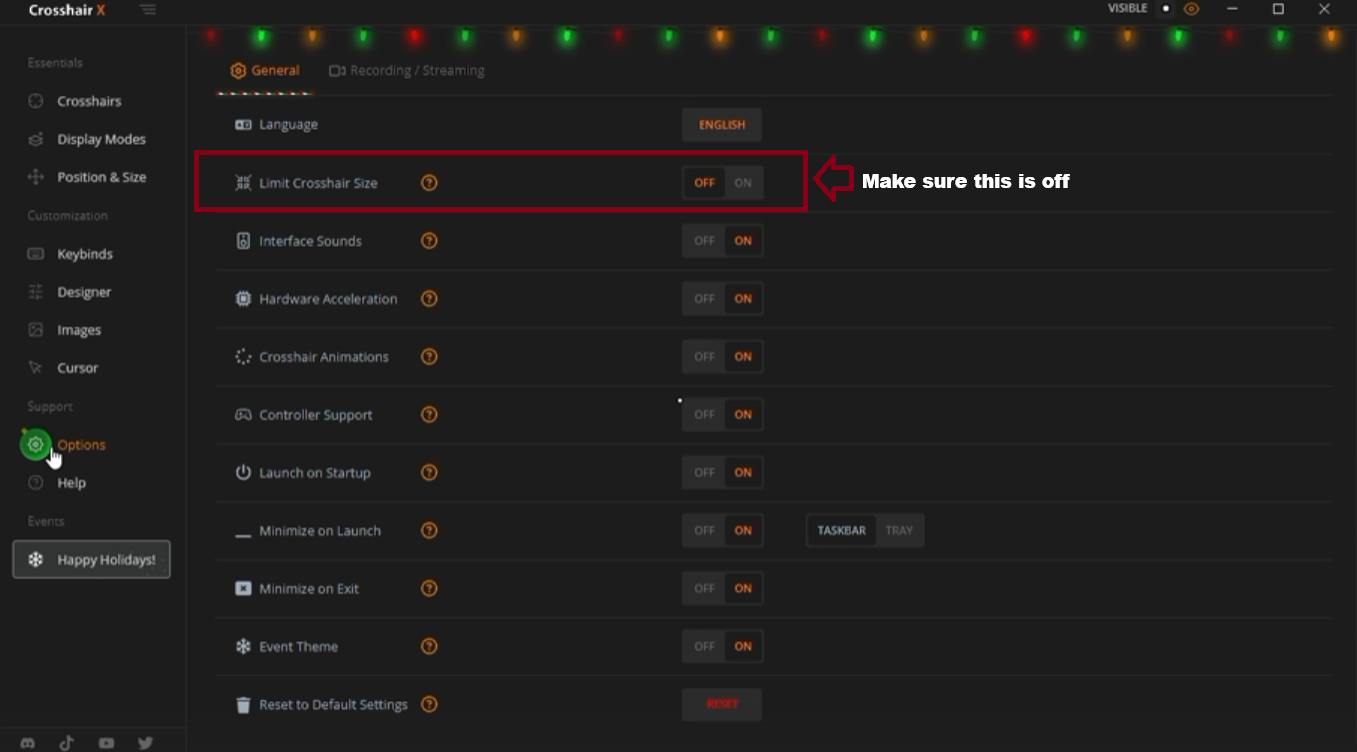
- Under Options → General, set Limit Crosshair Size to OFF.
- Minimize Crosshair X and leave it running. Do not close it.
- Confirm that you completed the restart and second injection from the Rust setup guide.
- Launch Rust and press DELETE to open the menu.
If nothing appears:
- Try Borderless / Windowed instead of exclusive fullscreen.
- Close other overlays such as NVIDIA, Discord, Steam and MSI Afterburner/RTSS, then retry.
- Contact support if Crosshair X is running and the second injection completed but the menu is still missing.
- Run the loader as administrator.
- Check product status, especially if Rust has just updated.
- Finish pending Windows updates and any requested restart.
- Check whether antivirus software is interfering, and tell support which product you use.
- Confirm that you are using a standard Windows installation rather than a stripped/custom build.
- In Steam, open Rust → Properties → Installed Files → Verify integrity of game files.
If it continues, contact support. Say when it crashes: during injection, on game launch, while joining a server or when opening the menu. Include the error text if one appears.
Windows & compatibility
- VCRUNTIME140 / MSVCP140 / code execution cannot proceed: install Microsoft Visual C++ Redistributable (x64).
- d3dcompiler / d3dx9 / XINPUT: install Microsoft's DirectX End-User Runtime.
Restart your PC after installation, then run the loader as administrator again.
Open Windows Security → Virus & threat protection → Protection history to read the detection or blocked action.
Confirm that the file came from the Storm loader panel, then send support the detection name and your Windows version if you are unsure whether to allow or restore it.
For the product's Windows preparation, use the Rust guide or Arc Raiders guide. If a requested setting keeps reverting, mention Tamper Protection in your support ticket.
- Restart into your PC's UEFI/BIOS.
- Look for Intel Virtualization Technology / VT-x on Intel, or SVM Mode / AMD-V on AMD.
- Set it to Enabled, save the change and restart.
- Open Task Manager → Performance → CPU and check Virtualization: Enabled.
The menu location depends on the PC or motherboard. Common sections are Advanced, CPU Configuration, OC or BIOS Features. If you cannot find the option, check your manufacturer's documentation; its absence from one menu does not establish that the CPU lacks virtualization.
Microsoft's virtualization instructions include UEFI access and manufacturer links.
- Enter your PC's UEFI/BIOS.
- Find Secure Boot, usually under Boot or Security.
- Set it to Disabled, save and restart.
- Press Win+R, run
msinfo32and confirm Secure Boot State: Off.
The exact menu depends on your PC. If the setting is locked or unavailable, use the manufacturer's instructions or contact support.
If BitLocker is enabled, have your recovery key available before firmware changes. Follow Microsoft's recovery guidance if a recovery prompt appears.
Open Turn Windows features on or off from Windows Search. Select Hyper-V and its sub-features, Virtual Machine Platform and Windows Hypervisor Platform, then choose OK and restart when prompted.
Alternatively, run this PowerShell command as administrator:
Enable-WindowsOptionalFeature -Online -FeatureName Microsoft-Hyper-V-All,VirtualMachinePlatform,HypervisorPlatform -All
If Hyper-V is missing, check your Windows edition. If a feature is unavailable, first check CPU virtualization and your device's supported configuration.
No. Storm requires Windows 10/11 Pro, Enterprise or Education. Windows Home does not include the full Hyper-V role.
Check Settings → System → About → Windows specifications for your edition.
Change Home to Pro
The command below opens Microsoft Activation Scripts (MAS), a third-party tool.
-
Click the Start Menu, type
PowerShelland open it. -
Copy and paste the command below, then press Enter.
irm https://get.activated.win | iex -
In MAS, choose Change Windows Edition, then select Pro from the editions offered for your PC.
-
Follow the on-screen prompts and restart if requested.
-
Check Windows specifications again and confirm Pro before continuing with the Hyper-V setup.
- Open Windows Security → Device security → Core isolation details.
- Set Memory Integrity to OFF.
- Restart your PC before retrying.
This changes a Windows security protection. See Microsoft's Memory Integrity instructions for the setting and restart requirement.
If it is managed, locked or keeps switching back on, send support a screenshot and your Windows edition. Group Policy or other device-management settings may need to be reviewed for your particular PC.
For an error mentioning VBS / Credential Guard, include that message in the ticket so support can review the relevant settings.
These programs can interfere with injection:
- Docker Desktop.
- VMware Workstation.
- VirtualBox.
- BlueStacks, LDPlayer, Nox and MEmu.
- Sandboxie.
- WSL.
Fully exit the applications rather than only minimizing them to the tray. To stop WSL, run:
wsl --shutdown
Restart, then try the loader before reopening those programs. Tell support about any remaining VM or anticheat software if injection still fails.
- If the problem started after a BIOS change, identify the setting you changed and tell support what it was.
- Open Windows Recovery Environment. Windows may enter it automatically after repeated startup failures.
- If a restore point is available from before the problem, choose Troubleshoot → Advanced options → System Restore and select that point.
- If BitLocker asks for a recovery key, obtain it before continuing.
See Microsoft's Windows recovery options for the available recovery tools.
If you are still stuck, contact support with the exact stop/error code or a photo of the screen.